Thursday, August 30, 2018

CHAPTER 9

CHAPTER 9: OPERATING SYSTEM

OPERATING SYSTEM (OS)

- A set of programs containing instructions that work together to
  coordinate all the activities among computer and mobile device
  hardware


  • Start and shut down a computer or mobile device
  • Provide a user interface
  • Provide file management and other device or media-related task
  • Coordinate tasks
  • Establish an Internet connection
  • Updating operating system software
  • Control a network
  • Monitor performance
  • Manage memory
  • Administer security


  • OPERATING SYSTEM FUNCTIONS
    • User Interface (UI)
              - Controls how to enter data and instructions and how 
                information is displayed on the screen

    • The operating system determines the order in which tasks are processes


    • Driver
              - A small program that tells the operating system how to 
                communicate with a specific device
    • Provide a means to establish Internet connections
    • Provide users with a variety of tools related to managing a computer, its devices or its programs
              -File Manager
              -Disk Defragmenter
              -Search
              -File compression
              -Screen saver
              -Image viewer
              -Uninstaller
              -PC Maintenance
              -Dick Cleanup
              -Backup and Restore
    • Automatic update
              - Automatically provides new features or corrections to the 
                program
    • User account
              - Enables a use to sign in to, or access resources on, a network 
                or computer

    TYPE OF OPERATING SYSTEM


    DESKTOP OPERATING SYSTEM

    - A complete operating system that works on desktops, laptops and 
      some tablets
       
       Ex: Windows, Linux, Mac OS, Unix

    • Windows 8 features:

              -Start screen interface with tiles
              -Includes the desktop interface
              -Support for input via touch, mouse, and keyboard
              -Email app, calendar app, and browser included
              -Enhanced security through an antivirus program, firewall, and 
               automatic updates
              -Windows Store offers additional applications for purchase


    • The Macintosh operating system has earned a reputation for its ease of use


    • UNIX is a multitasking operating system developed in the early 1970
    • Linux is a popular, multitasking UNIX-based operating system

    MOBILE OPERATING SYSTEM

    • Android
              - An open source, Linux-based mobile operating system 
                designed by Google for smartphones and tablets
    • Windows phone
              - Developed by Microsoft, is a proprietary mobile operating 
                system that runs on some smartphones
    • iOS
              - Developed by Apple, is a proprietary mobile operating system 
                specifically made for Apple’s mobile devices


    CHAPTER 8

    CHAPTER 8: DIGITAL STORAGE

    STORAGE

    - Storage medium is the physical material on which a computer keeps
      data, information, programs and applications

    - Cloud storage is the actual online storage media


    • Capacity
              - The number of bytes a storage medium can hold


    HARD DISK

    - Contains one or more inflexible, circular platters that use magnetic 
      particles to store data, instructions and information


    • Head crash
              - Occurs when a read/write head touches the surface of a 
                platter


    • External hard disk
              - A separate freestanding storage device that connects with 
                a cable to a USB port or other port on a computer or mobile 
                device


    FLASH MEMORY STORAGE
    • Flash memory chips are a type of solid state media and contain no moving parts
    • SSD (Solid state drive) and HDD (hard disk drive)

    SSD
    HDD
    High price(1TB≈RM1000)
    Low price(1TB≈RM160-200)
    Smaller capacity (max1TB lp/4TB pc)
    Big capacity (max4TB lp/10TB pc)
    Short lifespan
    Long lifespan
    Low power consumption (2W)
    Higher power consumption (7W)
    High speed (200-550Mb/s)
    Lower speed (50-120Mb/s)


    • Memory card
           

    • USB flash drive
       

    CLOUD STORAGE

    - Internet service that provides storage to computer  or mobile device 
      users

    OPTICAL DISC

    - Consists of a flat, round, portable disc made of metal, plastic and 
      lacquer that is written and read by a laser


    • CD-ROM can be read from but not writable or erasable
    • CD-R is an optical disc on which users can write once, but not erase
    • CD-RW is an erasable multisession disc
    • DVD-ROM is a high-capacity optical disc on which users can read but not write on or erase
    • DVD-R or DVD+R are competing DVD-recordable WORM formats, on which users can write once but not erase
    • DVD-RW, DVD+RW, and DVD+RAM are high-capacity rewritable DVD formats

    OTHER TYPES OF STORAGE

    • Magnetic stripe card
              - Contains a magnetic stripe that stores information
    • Smart card
              - Stores data on an integrated circuit embedded in the card
    • Radio Frequency Identification (RFID)
              - The RFID tag consists of an antenna and a memory chip that 
                contains the information to be transmitted via radio waves

              - An RFID reader reads the radio signal and transfers the 
                information to a computer or computing device


    • Microfilm and Microfiche
              - Store microscopic images of documents on a roll or sheet film


    Wednesday, August 8, 2018

    CHAPTER 7 & MICROSOFT POWERPOINT

    CHAPTER 7: INPUT AND OUTPUT

    INPUT

    Any data and instructions entered into the memory of a computer.


    • Keyboard

    • Pointing Devices
              - Mouse


             - Touchpad
             - Trackball
             - Pointing stick
    • Pen input

    • Motion input

    • Voice input
              The process of entering input by speaking into a microphone

              -Voice recognition is the computer or mobile device’s capability
                of distinguishing spoken words
    • Audio input
              -The process of entering any sound into the computer such as
                speech, music, and sound effects
    • Video input
               The process of capturing full-motion images and storing them
               on a computer or mobile device’s storage medium

               - Webcam
                  - Capture video and still images
                  - Send email messages with video attachments
                  - Add live images to instant messages
                  - Broadcast live images over the Internet
                  - Conduct videoconferences
                  - Make video calls
    • Scanner and Reading Devices
              - Scanner is a light-sensing input device that reads printed text
                and graphic and then translates the results into a form the
                computer can process


              - Bar code reader uses laser beams to read bar codes


              - QR code stores information in both a vertical and horizontal 
                direction


               - Optical reader is a device that uses a light source to read 
                 characters, marks and codes and then converts them into 
                 digital data that a computer can process

                  - Optical character recognition (OCR)


                  - Optical mark recognition (OMR)


              - Magstripe readers read the magnetic stripe on the back of 
                cards


    OUTPUT

    Data that has been processed into a useful form

    • Display
              Visually conveys text, graphics, and video information
             
              - Monitor


    • Printer
              Produces text and graphics on a physical medium

              - Nonimpact printer

                - Forms characters and graphics on a piece of paper without
                  actually contacting the paper


              - Ink-jet printer
               
                 - Forms characters and graphics by spraying tiny drops
                   of liquid ink onto a piece of paper


              - Laser printer


              - All-in-one printer

                - A single device that prints, scans, copies, and faxes



             - Thermal printer

                - Generates images by pushing electrically heated pins against
                   the heat-sensitive paper


             - Mobile printer

                - A small, lightweight, battery-powered printer that allows a
                  mobile user to print from a mobile device


             - Label printer

                - A small printer that prints on an adhesive-type material that
                  can be placed on a variety of items


             - Impact printer

                - Form characters and graphics on a piece of paper by striking
                  a mechanism against an inked ribbon that physically contacts
                  the paper


    • Speaker
              

    • Headphones
              - Speakers that cover or are placed outside of the ear

    • Earbuds (Earphones) 
    • Data projector 
              - A device that takes the text and images displaying on a
                computer or mobile device screen and projects them on
                a larger screen


    MICROSOFT POWERPOINT

    Choose a theme:

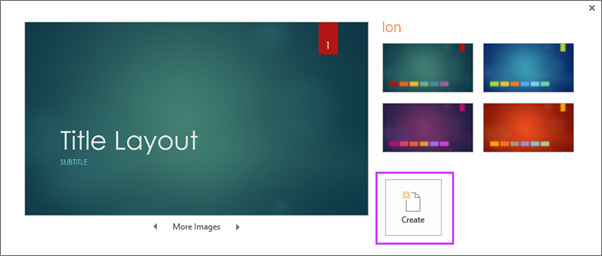
    1. On the File tab of the Ribbon, select New, and then choose a theme.

    PowerPoint shows you a preview of the theme, with four color variations to choose from on the right side.

    2. Click Create, or pick a color variation and then click Create.

    Shows the Create New presentation from Theme dialog in PowerPoint


    Insert a new slide:

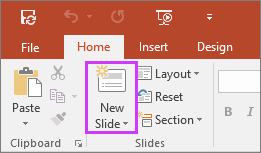
    1. On the Home tab, click the bottom half of New Slide, and pick a slide layout.

    Shows New Slide button on Home tab of the ribbon in PowerPoint


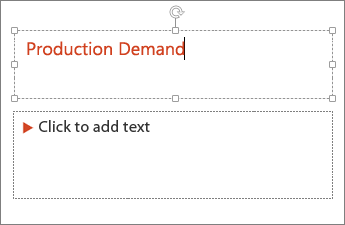
    Add text:

    Select a text placeholder, and begin typing.

    Shows adding text to a text field in PowerPoint

    Format text:

    1. Select the text.

    2. Under Drawing Tools, choose Format.

    Shows the Drawing Tools tab on the ribbon in PowerPoint

    3. Do one of the following:

    • To change the color of your text, choose Text Fill, and then choose a color.


    • To change the outline color of your text, choose Text Outline, and then choose a color.


    • To apply a shadow, reflection, glow, bevel, 3-D rotation, a transform, choose Text Effects, and then choose the effect you want.


    Add pictures:

    1. On the Insert tab, do one of the following:

    • To insert a picture that is saved on your local drive or an internal server, choose Pictures, browse for the picture, and then choose Insert.


    • To insert a picture from the web, choose Online Pictures, and use the search box to find a picture.

    Insert Pictures dialog in PowerPoint

    Choose a picture, and then click Insert.

    Insert audio:

    1. In Normal view, click the slide that you want to add a sound to.

    2. On the Insert tab, in the Media group, click Audio.

    3. In the list, click Audio on My PC, locate and select the audio clip that you want, and then click Insert.
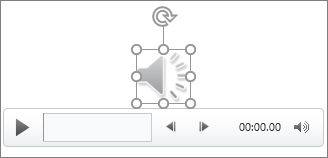
    The audio icon and controls appear on the slide.

    The audio icon and controls

    In Normal view or Slide Show view, click the icon and click Play to play the music or other sound.

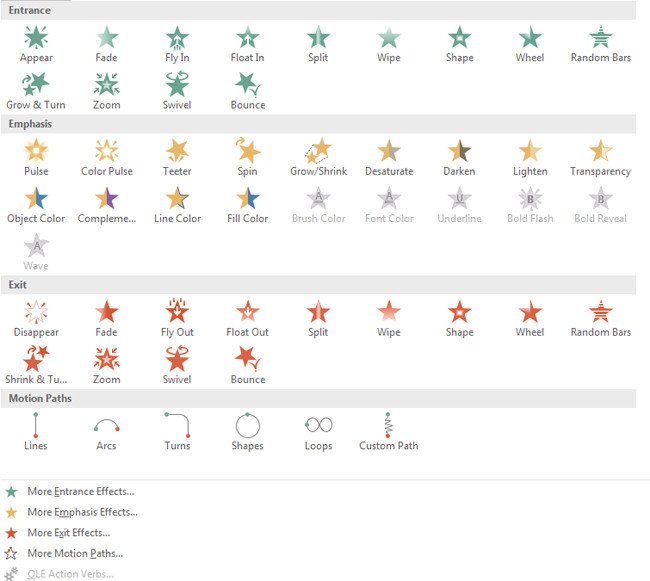
    Add animation:

    1. Select the text or object you need to animate
    2. Click on the Animations tab in the navigation ribbon.
    3. Click Add Animation.
    4. Select an animation effect from the list.


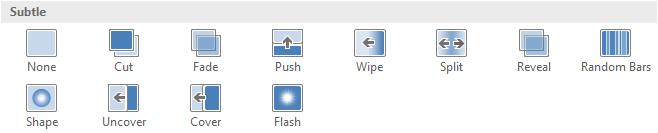
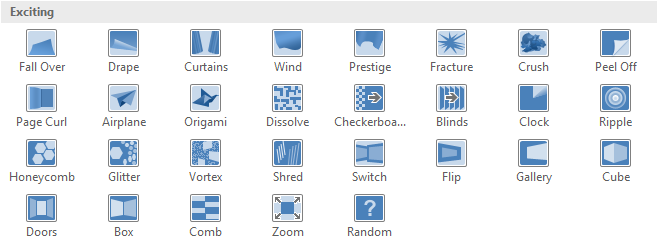
    Add transition:

    1. Subtle:

    Subtle transitions

    2. Exciting:

    Exciting transitions

    3. Dynamic Content:

    Dynamic transitions

    Hyperlink:

    Insert a hyperlink to another slide:

    1. Right-click the selected text or image, then click Hyperlink.

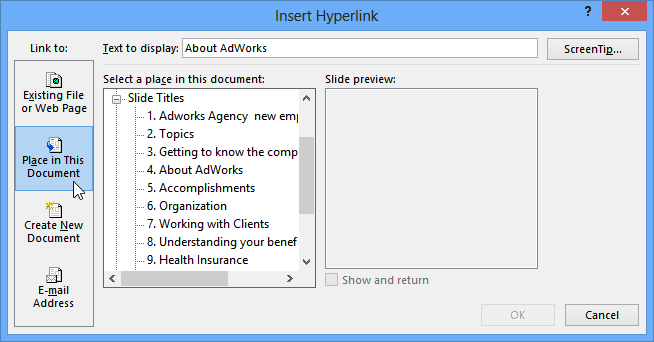
    2. The Insert Hyperlink dialog box will appear.

    3. On the left side of the dialog box, click Place in this Document.

    Screenshot of PowerPoint 2013

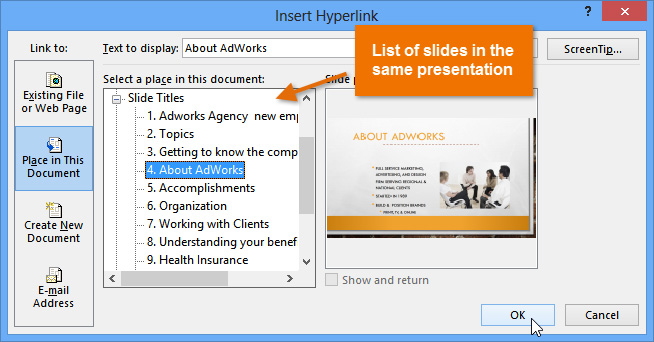
    4. A list of the other slides in your presentation will appear. Click the name of the slide you want to link to.

    Screenshot of PowerPoint 2013

    5. Click OK. The text or image will now be a hyperlink to the slide you selected.