DESKTOP AND MOBILE COMPUTER
- A personal computer (PC) is a computer that can perform all of its input, processing, output, and storage activities by itself and is intended to be used by one person at a time
- A mobile computer is a portable personal computer, designed so that a user easily can carry it from place to place
- A desktop is a personal computer designed to be in a stationary location, where all of its components fit on or under a desk or table

- A tablet is a thin, lightweight mobile computer that has a touch screen

- A laptop, also called a notebook computer, is a thin, lightweight mobile computer with a screen in its lid and a keyboard in its base
- A handheld computer is a computer small enough to fit in one hand

SERVER
- A server is a computer dedicated to providing one or more services to other computers or devices on a network
-Rack server
-Blade server
-Tower server

- A mainframe is a large, expensive, powerful server that can handle hundreds or thousands of connected users simultaneously
- A supercomputer is the fastest, most powerful computer
TERMINALS
- A terminal is a computer, usually with limited processing power, that enables users to send data and receive information from a server, or host computer


- An ATM (automated teller machine) is a self-service banking terminal that connects to a host computer through a network

- A self-service kiosk is a freestanding terminal that usually has a touch screen for user interaction

MOBILE DEVICES
- Smartphone

- Digital Camera

- E-book Reader
GAME DEVICES
- A game console is a mobile computing device designed for single-player or multiplayer video games
- A handheld game device is a small mobile device that contains a screen, speakers, controls, and game console all in one unit
- Game controllers include gamepads, joysticks and wheels, dance pads, and a variety of motion-sensing controllers

EMBEDDED COMPUTER
- A special-purpose computer that functions as a component in a larger product

PORT AND CONNECTIONS
- A point at which a peripheral device attaches to or communicates with a computer or mobile device so that the peripheral device can send data to or receive information from the computer or mobile device
- A connector joins a cable to a port

- A USB port (universal serial bus port) can connect up to 127 different peripheral devices together with a single connector
- Some peripheral devices use wireless communications technologies
-Wifi
PROTECTING HARDWARE
- A surge protector uses electrical components to provide a stable current flow and minimize the chances of an overvoltage reaching the computer and other electronic equipment

- An uninterruptible power supply (UPS) is a device that contains surge protection circuits and one or more batteries that can provide power during a temporary or permanent loss of power

MICROSOFT WORD (MAIL MERGE)
Mail merge is used to create multiple documents at once. These documents have identical layout, formatting, text, and graphics. Only specific sections of each document varies and is personalized. The documents Word can create with mail merge include bulk labels, letters, envelopes, and emails. There are three documents involved in the mail merge process:
- Main document
- Data source
- Merged document
Step 1: Prepare data in Excel for mail merge.
Step 2: Start the mail merge.
In Word, choose File > New > Blank document.
On the Mailings tab, in the Start Mail merge group, choose Start Mail Merge, and then choose the kind of merge you want to run.
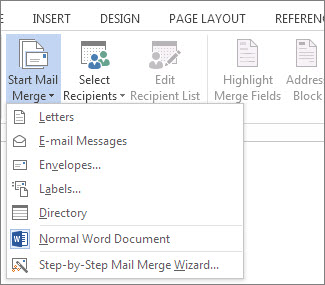
Choose Select Recipients > Use an Existing List.

Browse to your Excel spreadsheet, and then choose Open.
If Word prompts you, choose Sheet1$ > OK.
Edit the mailing list:
You can limit who receives your mail.
Choose Edit Recipient List.

In the Mail Merge Recipients dialog box, clear the check box next to the name of any person who you don't want to receive your mailing.

Step 3: Insert a merge field
1. On the Mailings tab, in the Write & Insert Fields group, choose Address Block.
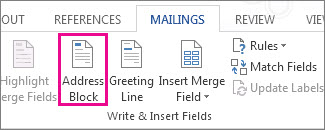
2. In the Insert Address Block dialog box, choose a format for the recipient's name as it will appear on the envelope.
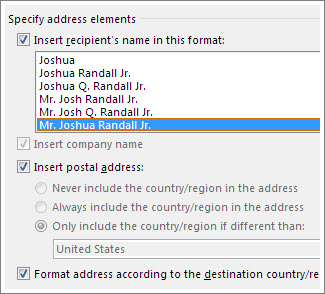
3. Choose OK.
4. Choose File > Save.
To insert data from your spreadsheet in an email message or a letter:
1. On the Mailings tab, in the Write & Insert Fields group, choose Insert Merge Field.
2. In the Insert Merge Field dialog box, under Fields, choose a field name (column name in your spreadsheet), and then choose Insert.
3. Repeat step 2 as needed, and choose Close when done.
4. Choose File > Save.
Step 4: Preview and finish the mail merge
1. On the Mailings tab, choose Preview Results.
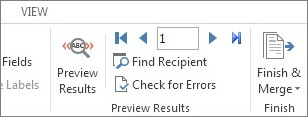
2. Choose the Next or Previous record button to move through records in your data source and view how the records will appear in the document.
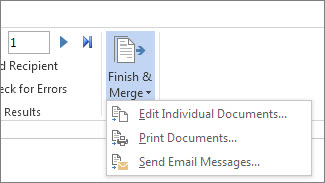
3. In the Finish group, choose Finish & Merge, and choose Print Documents or Send E-mail Messages
.
Step 5: Save your mail merge

No comments:
Post a Comment