CHAPTER 7: INPUT AND OUTPUT
INPUT
Any data and instructions entered into the memory of a computer.
- Touchpad
- Trackball
- Pointing stick
The process of entering input by speaking into a microphone
-Voice recognition is the computer or mobile device’s capability
of distinguishing spoken words
-The process of entering any sound into the computer such as
speech, music, and sound effects
The process of capturing full-motion images and storing them
on a computer or mobile device’s storage medium
- Webcam
- Capture video and still images
- Send email messages with video attachments
- Add live images to instant messages
- Broadcast live images over the Internet
- Conduct videoconferences
- Make video calls
- Scanner and Reading Devices
- Scanner is a light-sensing input device that reads printed text
and graphic and then translates the results into a form the
computer can process
- Bar code reader uses laser beams to read bar codes
- QR code stores information in both a vertical and horizontal
direction
- Optical reader is a device that uses a light source to read
characters, marks and codes and then converts them into
digital data that a computer can process
- Optical character recognition (OCR)
- Optical mark recognition (OMR)
- Magstripe readers read the magnetic stripe on the back of
cards
OUTPUT
Data that has been processed into a useful form
Visually conveys text, graphics, and video information
- Monitor
Produces text and graphics on a physical medium
- Nonimpact printer
- Forms characters and graphics on a piece of paper without
actually contacting the paper
- Ink-jet printer
- Forms characters and graphics by spraying tiny drops
of liquid ink onto a piece of paper
- Laser printer
- All-in-one printer
- A single device that prints, scans, copies, and faxes

- Thermal printer
- Generates images by pushing electrically heated pins against
the heat-sensitive paper
- Mobile printer
- A small, lightweight, battery-powered printer that allows a
mobile user to print from a mobile device
- Label printer
- A small printer that prints on an adhesive-type material that
can be placed on a variety of items
- Impact printer
- Form characters and graphics on a piece of paper by striking
a mechanism against an inked ribbon that physically contacts
the paper
- Speakers that cover or are placed outside of the ear
- A device that takes the text and images displaying on a
computer or mobile device screen and projects them on
a larger screen
MICROSOFT POWERPOINT
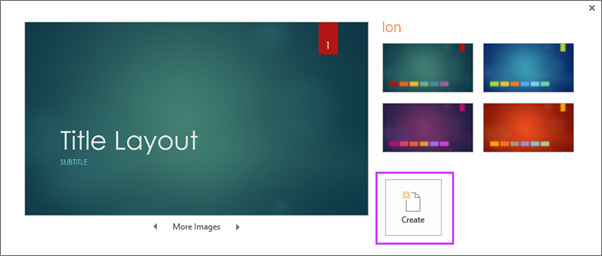
Choose a theme:
1. On the File tab of the Ribbon, select New, and then choose a theme.
PowerPoint shows you a preview of the theme, with four color variations to choose from on the right side.
2. Click Create, or pick a color variation and then click Create.
Insert a new slide:
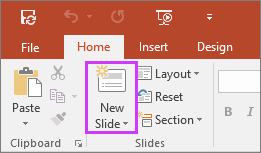
1. On the Home tab, click the bottom half of New Slide, and pick a slide layout.
Add text:
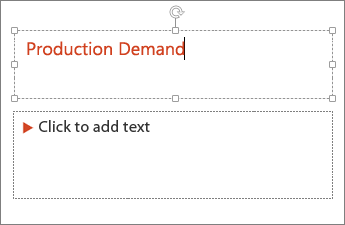
Select a text placeholder, and begin typing.
Format text:
1. Select the text.
2. Under Drawing Tools, choose Format.
3. Do one of the following:
- To change the color of your text, choose Text Fill, and then choose a color.
- To change the outline color of your text, choose Text Outline, and then choose a color.
- To apply a shadow, reflection, glow, bevel, 3-D rotation, a transform, choose Text Effects, and then choose the effect you want.
Add pictures:
1. On the Insert tab, do one of the following:
- To insert a picture that is saved on your local drive or an internal server, choose Pictures, browse for the picture, and then choose Insert.
- To insert a picture from the web, choose Online Pictures, and use the search box to find a picture.
Choose a picture, and then click Insert.
Insert audio:
1. In Normal view, click the slide that you want to add a sound to.
2. On the Insert tab, in the Media group, click Audio.
3. In the list, click Audio on My PC, locate and select the audio clip that you want, and then click Insert.
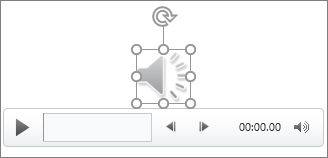
The audio icon and controls appear on the slide.
In Normal view or Slide Show view, click the icon and click Play to play the music or other sound.
Add animation:
1. Select the text or object you need to animate
2. Click on the Animations tab in the navigation ribbon.
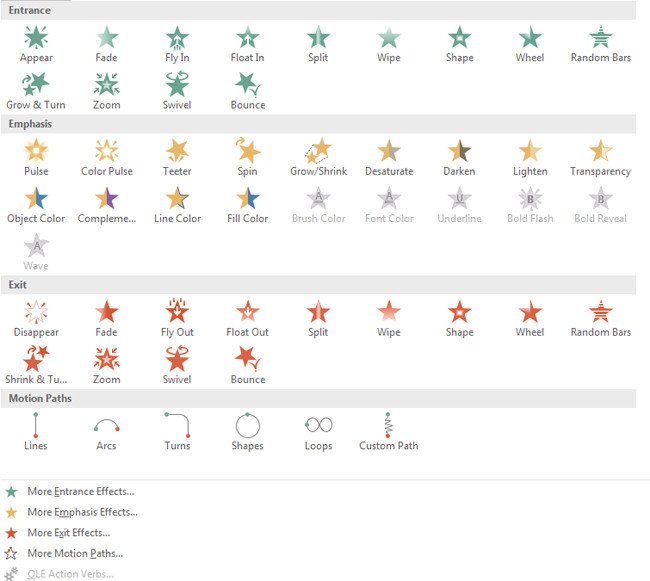
3. Click Add Animation.
4. Select an animation effect from the list.
Add transition:
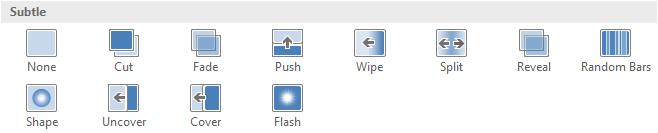
1. Subtle:
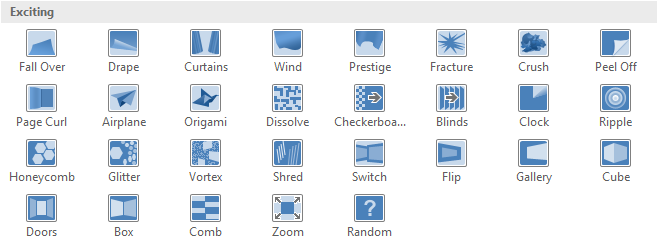
2. Exciting:
3. Dynamic Content:
Hyperlink:
Insert a hyperlink to another slide:
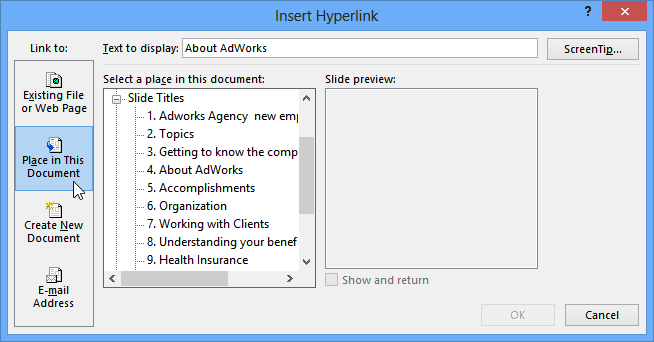
1. Right-click the selected text or image, then click Hyperlink.
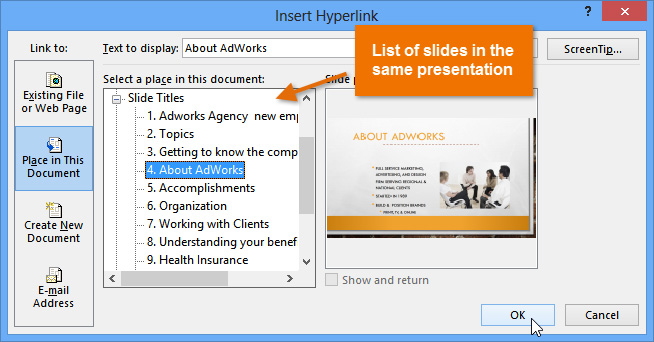
2. The Insert Hyperlink dialog box will appear.
3. On the left side of the dialog box, click Place in this Document.
4. A list of the other slides in your presentation will appear. Click the name of the slide you want to link to.
5. Click OK. The text or image will now be a hyperlink to the slide you selected.